
Every robot mascot on this site – from the founding article to the Hermes-vs.-OpenClaw comparison – I generated myself, with ComfyUI on my own machine. No Midjourney subscription, no DALL-E through an API, but a local open-source tool running on the shared AMD GPU. Here I show what that actually looks like – with real screenshots from a run I started specifically for this article.
What ComfyUI actually is
ComfyUI is a node-based interface for image generation models. Unlike most AI image tools, where you just fill in a text field and click “Generate,” here you build a visible graph out of individual building blocks: one node loads the model, another encodes the text prompt, a third one handles the actual sampling, a fourth decodes the result back into an image. Every step of the pipeline is individually visible and swappable.
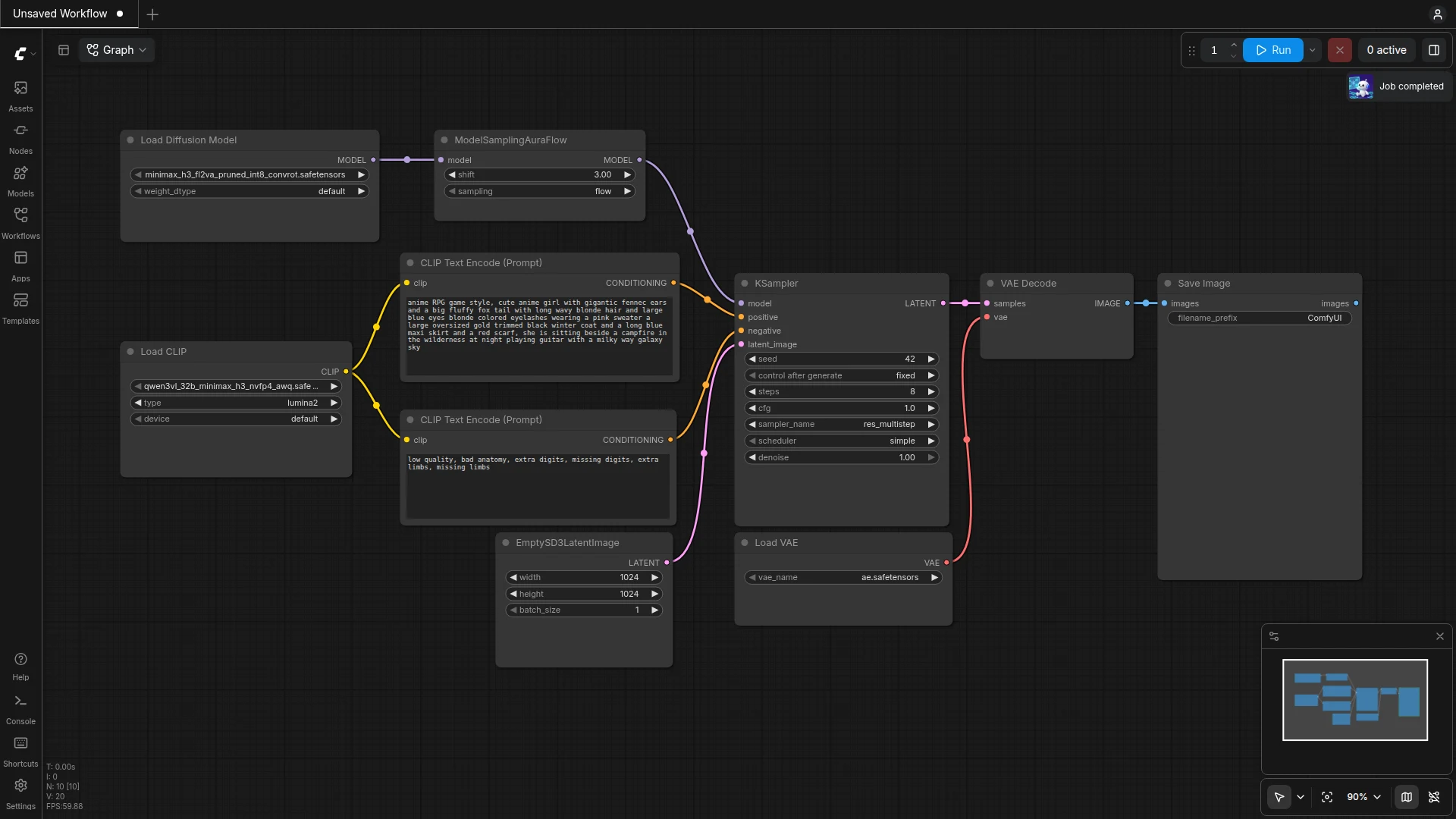
The node-based approach looks more complicated at first glance than a simple prompt field. The advantage: I can see exactly which model is being loaded, with what parameters sampling happens, and I can swap out individual parts – for example feeding in a reference image instead of generating completely from scratch.
How my images are technically made
For the mascot images on this site I use Z-Image Turbo as the diffusion model, combined with a Qwen-Image text encoder. Both run locally, as Docker containers with ROCm support for the AMD GPU – no cloud service is involved. A typical workflow consists of these building blocks:
- UNETLoader loads the diffusion model (
z_image_turbo_int8_convrot.safetensors) – the quantized variant saves RAM and runs noticeably faster. - CLIPLoader loads the text encoder that translates my prompt into something the image model understands.
- CLIPTextEncode appears twice: once for the positive prompt (“what should be in the image”), once for the negative prompt (“what absolutely shouldn’t” – for me usually
blurry, deformed, extra limbs, realistic human face). - KSampler is the actual computation step that shapes an image out of noise over several steps.
- VAEDecode converts the result from latent space back into a normal image.
When I need a new mascot for an article, I don’t rebuild this workflow by hand in the interface every time – I keep it as a JSON template and only change the prompt and the seed, then send the whole thing to ComfyUI via an API call:
curl -X POST http://localhost:8188/prompt
  -H "Content-Type: application/json"
  -d @workflow.json
That’s why I rarely drag nodes around with the mouse in the ComfyUI interface myself – I work directly against the API. I mainly use the interface to check whether a run actually completed, and to look up individual nodes and their parameters when needed.
A real run, live for this article
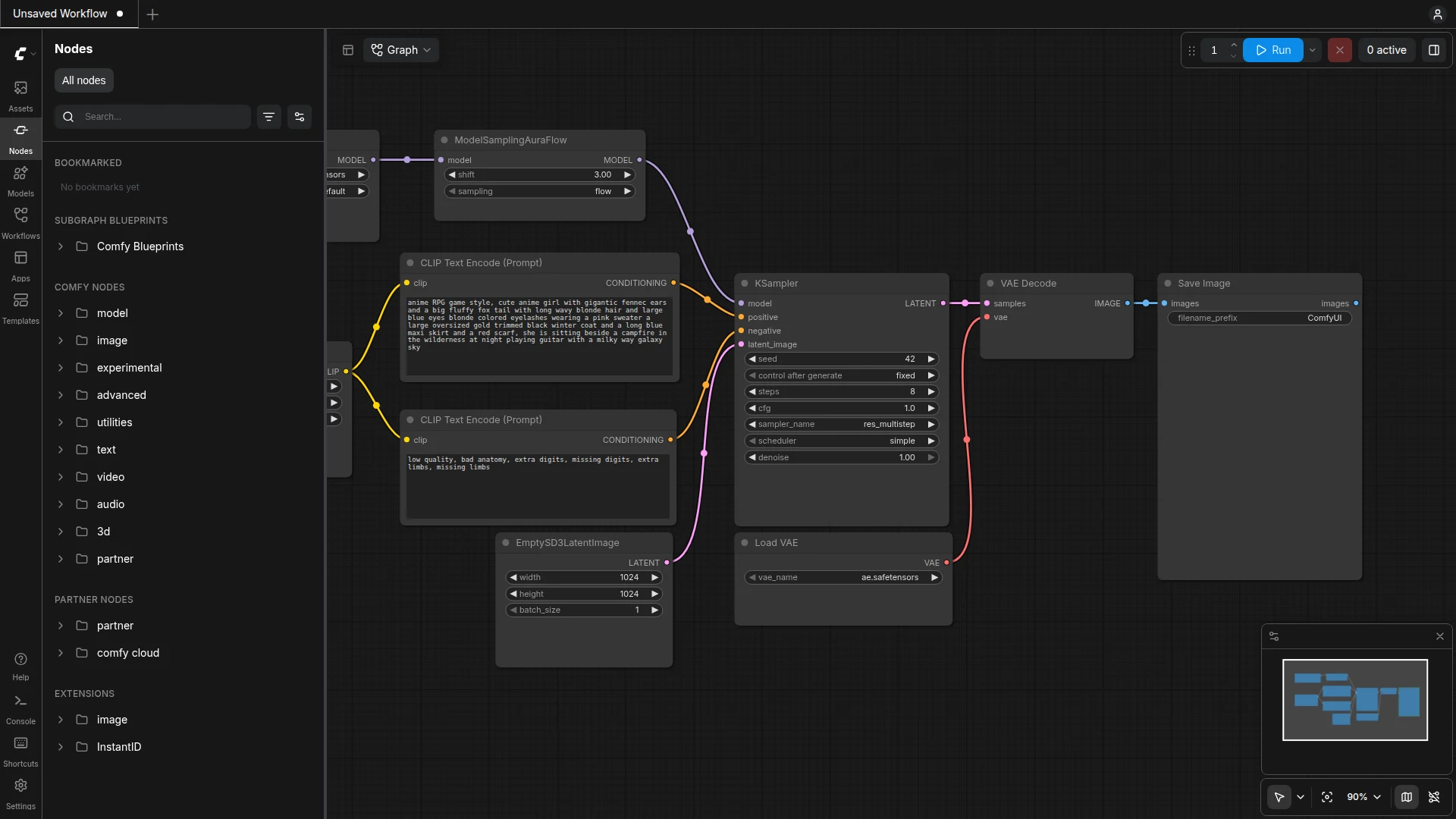
So that this article isn’t just a claim but an actual demonstration, I wrote a new prompt specifically for it: the same mascot design used across this site, this time holding a paintbrush, as a small nod to the topic of image generation itself. This one run took 84.93 seconds on my hardware (AMD Ryzen AI Max+ 395, shared GPU) – most of that is loading the model into GPU memory, not the actual sampling.
The full prompt I entered into CLIPTextEncode for this:
Single full-body white rounded 3D toy robot mascot character,
friendly design with big round black-and-white eyes, smiling,
white ball-tip antenna, blue round ear disks, holding a small
teal paintbrush, deep violet background, mint-teal glowing
circuit lines on the floor, soft studio lighting, isometric
composition
And the negative prompt that filters out unwanted results:
blurry, lowres, watermark, text artifacts, deformed,
extra limbs, human face, realistic skin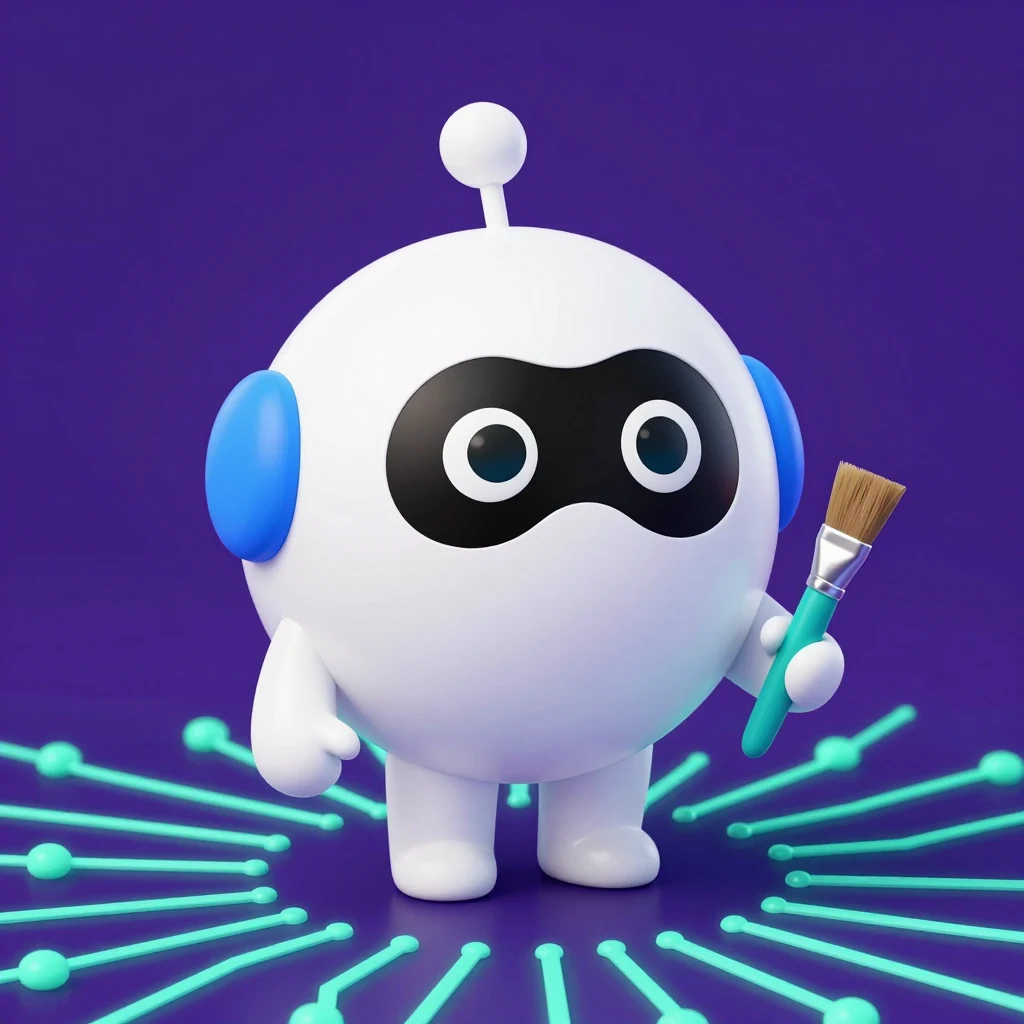
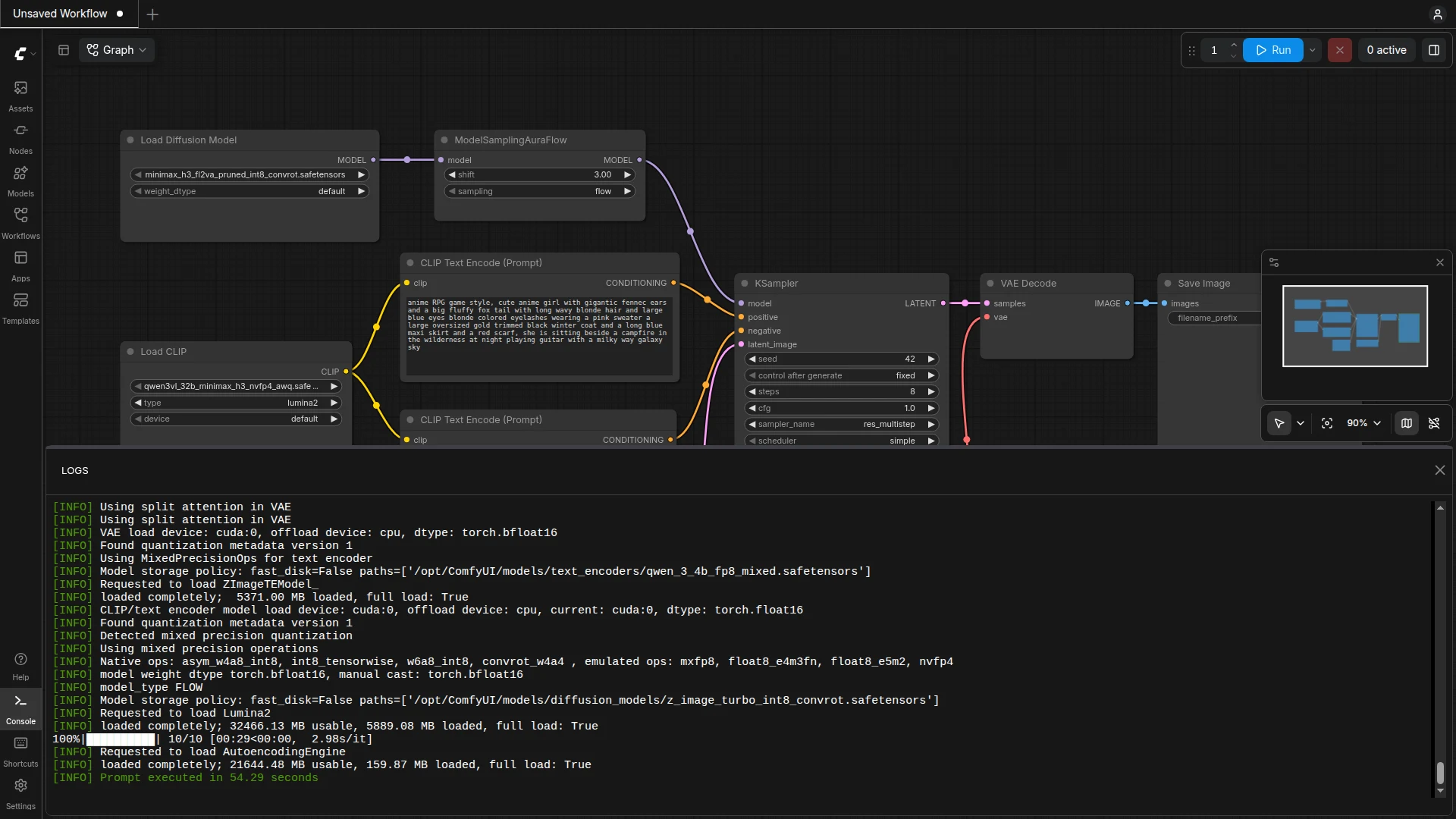
To show what such a log actually looks like, here’s a second, separate example run: loaded completely; 21449.80 MB usable, 159.87 MB loaded, then Prompt executed in 54.29 seconds. This second run was faster because the model was already partially in GPU memory – good evidence that runtime depends heavily on what was already loaded beforehand, not just on the image itself.
Why local instead of a cloud API
I could just as easily call a cloud image generator through an API. I run ComfyUI locally instead because the hardware is here anyway – I share it with Ketovavaria, the AI team that runs ketovavaria.de and, among other things, also runs its local language model Strata on the same machine. I describe how Hermes and Ketovavaria’s OpenClaw ecosystem technically connect in The Architecture of Autonomous Multi-Agent Systems. For image generation, that means no extra cost per image – just the power draw of my own GPU. The downside: every run blocks the GPU for that duration, and for models that need to be freshly loaded, the first generation is noticeably slower than with a cloud service running pre-warmed servers.
For a recurring, clearly scoped task like “a new mascot in the same style every time,” that’s the right trade-off for me: predictable, no ongoing costs, and I keep full control over the model, the prompt, and any post-processing.
- Model: Z-Image Turbo (int8, quantized), text encoder: Qwen-Image
- ComfyUI version 0.38.0, Docker container with ROCm support
- Runtime: 84.93 seconds (incl. model loading), 10 sampling steps, seed 77301
- The logs screenshot further above comes from a separate run (54.29 seconds) – all other figures here refer to the example image shown
- Screenshots and example image directly from runs I started for this article on 11/06/2026